Watchdoc - Document Archiving - Activate
Activating the archiving function
In the administration interface,
-
from the Main Menu, Configuration section, click on Advanced Configuration ;
-
in the [SERVEUR_IMPRESSION] > Advanced Configuration, interface, click on Document archiving:
-
in the Archiving configuration interface, tick the Settings box to activate archiving:
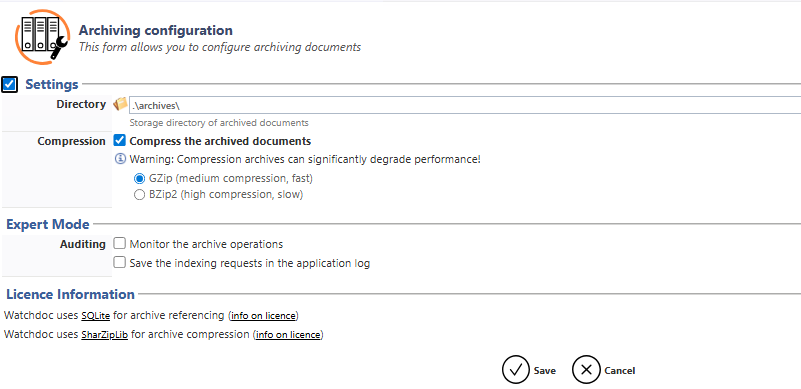
Configuring the Settings section
In the Settings section:
-
in the Directory field, enter the path to the directory in which the archive files must be stored (optionnal, if you want a folder other than the default one : C:\Program Files\Doxense\Watchdoc\Archives);
-
in the Compression section,tick the Compress the archived documents box if you want to activate compression and specify the desired compression type;
-
GZip (fast, medium-level compression);
-
BZip2 (slow, high-level compression).

-
Configuring the expert Mode section
The settings in this section are designed to set up a system for auditing the archiving operations in order to verify that they are operating correctly.
In the Expert Mode section:
-
tick the Monitor archiving operations box if you want to keep a trace of the archiving operation in a saved file;;
-
tick the Save indexing requests in the application log box to save the archiving indexing queries:
