View the list of quotas assigned to users
-
From the Main menu of administration interface, in the Production section, click on Use quotasto view the list of quotas assigned to users:
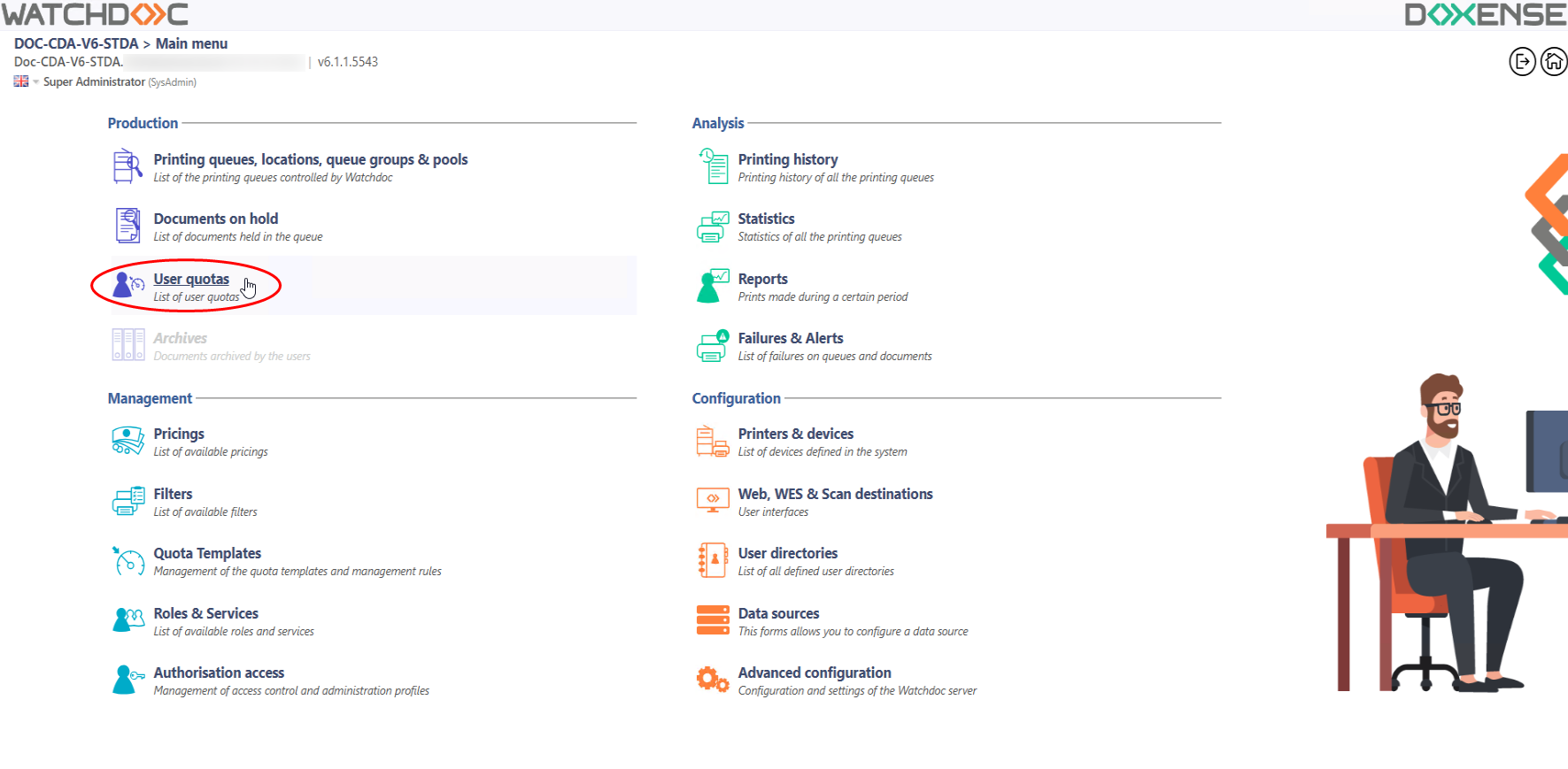
è You can view the list of all user quotas.
View and refill a user quota
To search for the quota(s) assigned to a user, role, or analytics code:
-
In the Search section, select the User checkbox;
-
In the field, enter the name, role, or analytics code you are looking for:
-
Click the Search button:
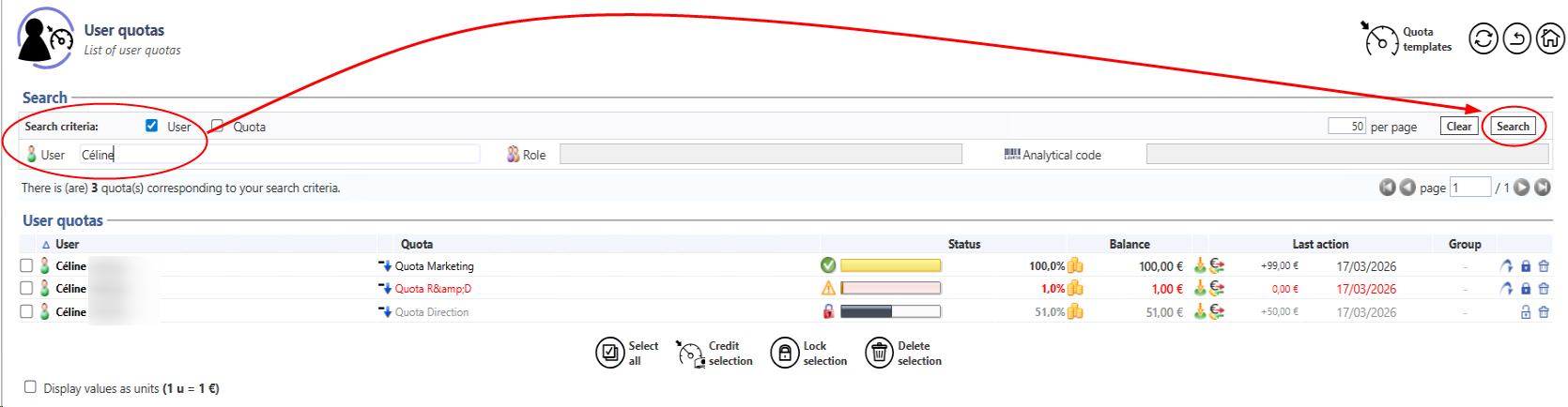
èYou can view the list of quotas assigned to the user, role, or cost center you searched for.
-
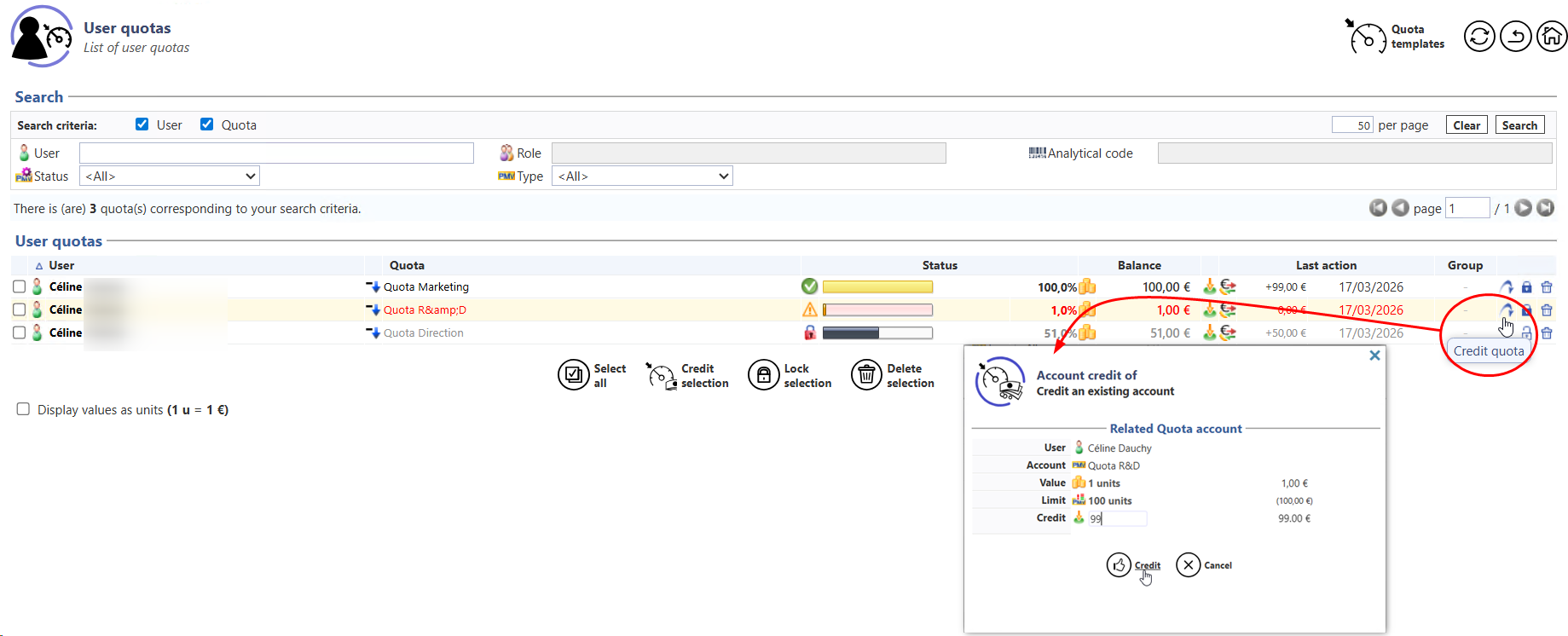
In the User Quotas list, click the Credit quota
 button located to the right of the quota you want to reload;
 -
In the Account credit of interface, enter the amount you want to credit to the quota;
-
Click the Credit button to confirm the reload:
View and recharge a quota
To search for a quota:
-
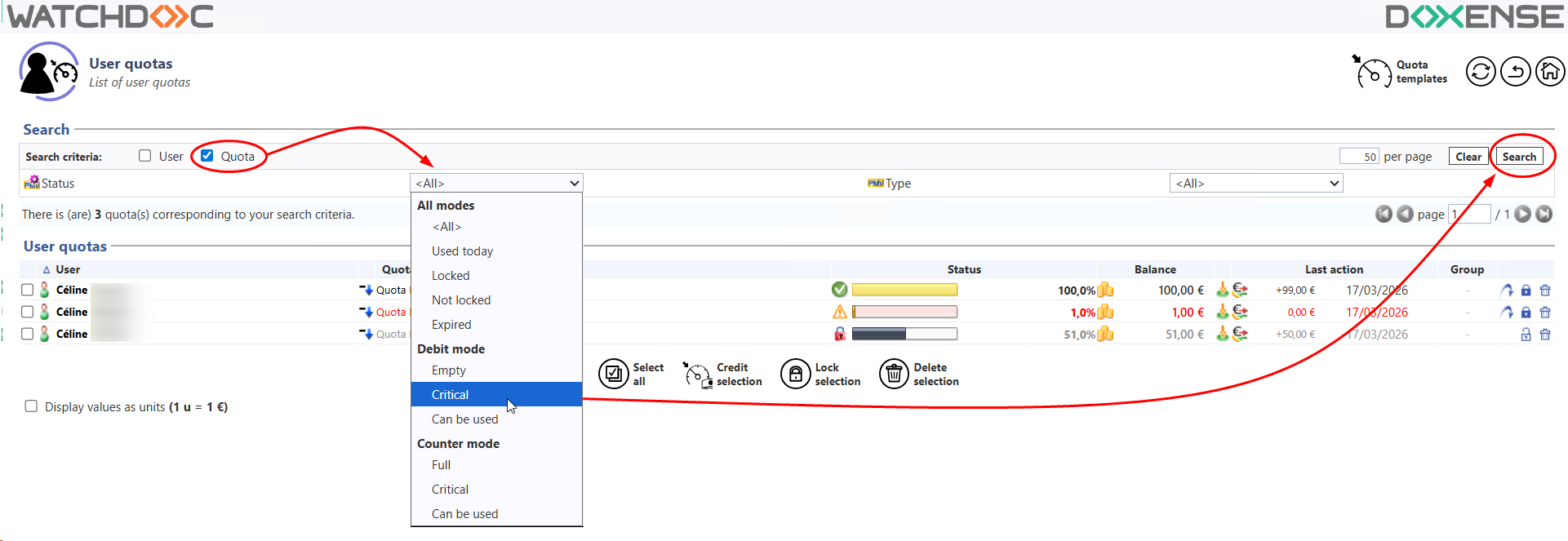
In the Search section, check the Quota box;
-
In the drop-down lists, select the status and/or type of quota you are looking for:
-
click the Search button
-
in the User Quotas list, click the Credit button located to the right of the quota you want to reload;
-
in the Account credit of interface, enter the amount you want to credit to the quota;
-
click the Credit button to confirm the reload:
Lock a quota
If you need to lock a quota:
-
search for a user or quota using your criteria;
-
in the list of quotas that match the criteria, click the button
 corresponding to the quota you want to lock;
 -
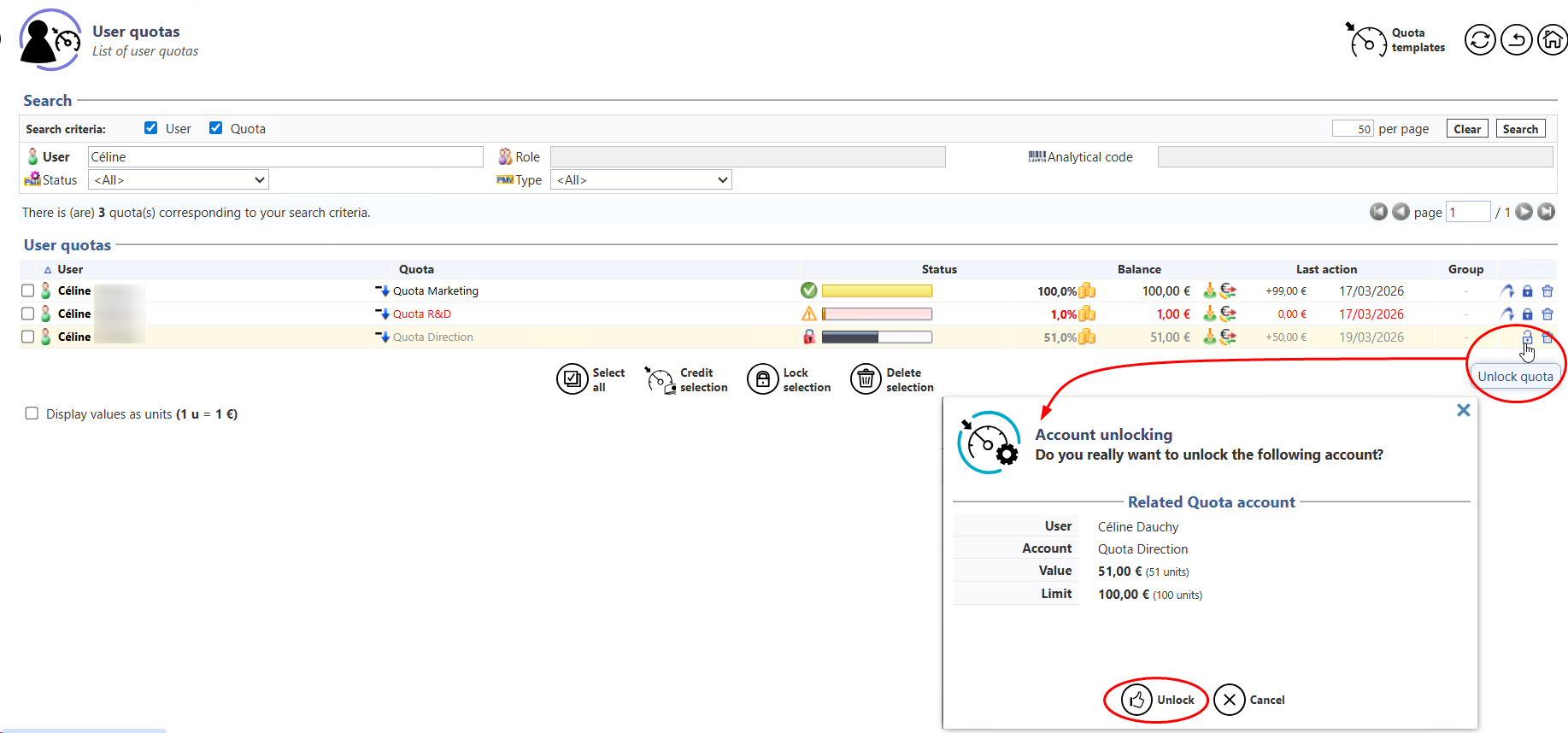
confirm the account lock in the dedicated interface:
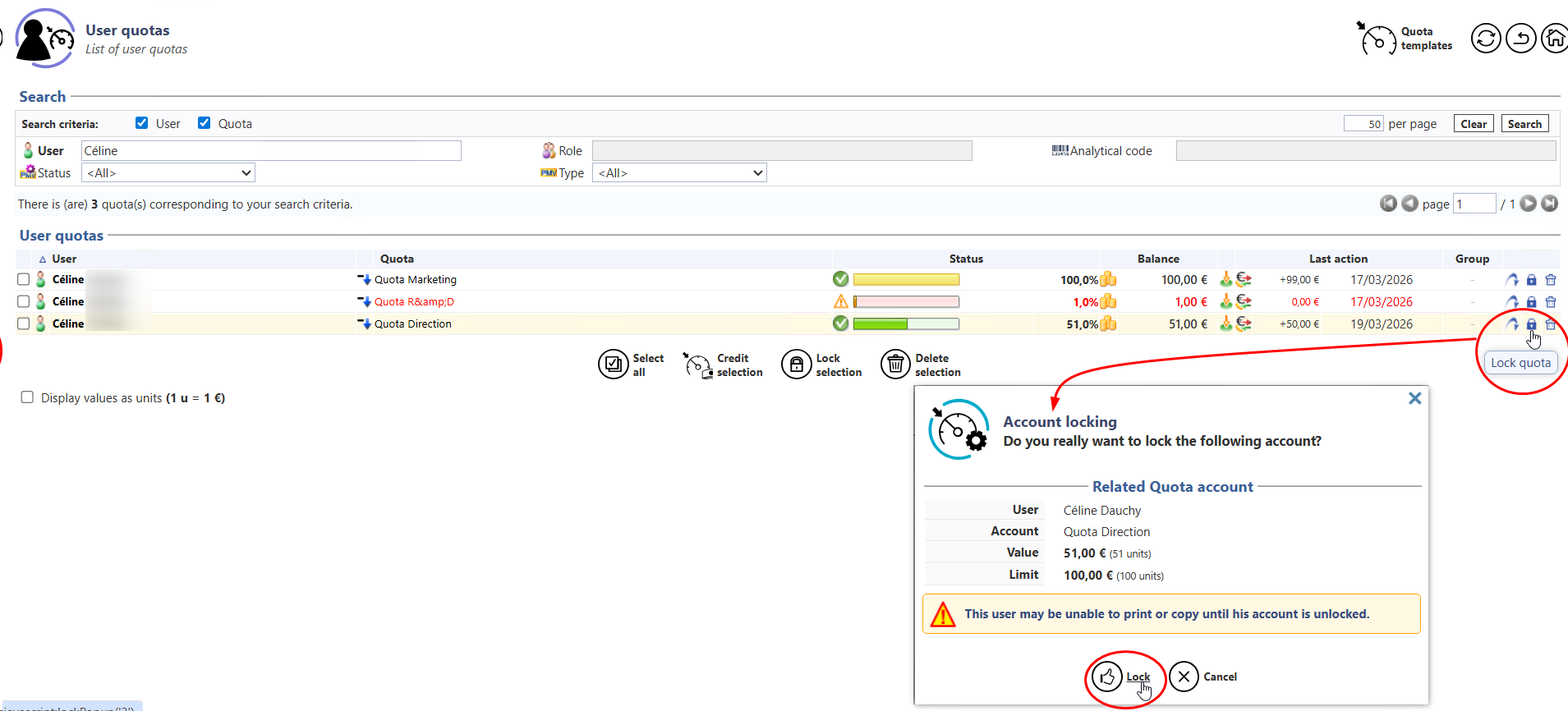
èOnce locked, this quota is marked with a red lock in the quota list, and its amount is displayed in black. :You can then unlock it by following the same steps and clicking the Unlock button, then confirm account unlocking :