WEScan - Configurer une destination Scan To Open Bee
Steps
To allow users to send their scanned documents to their Open Bee portal, follow these steps:
-
configure the connection between Watchdoc and MS Open Bee in External Services;
-
configure Microsoft Open Bee as a scan destination in WESCan.
Configure the connection to Open Bee in Watchdoc's External Services
-
Log in to the Watchdoc administration interface as an administrator;
-
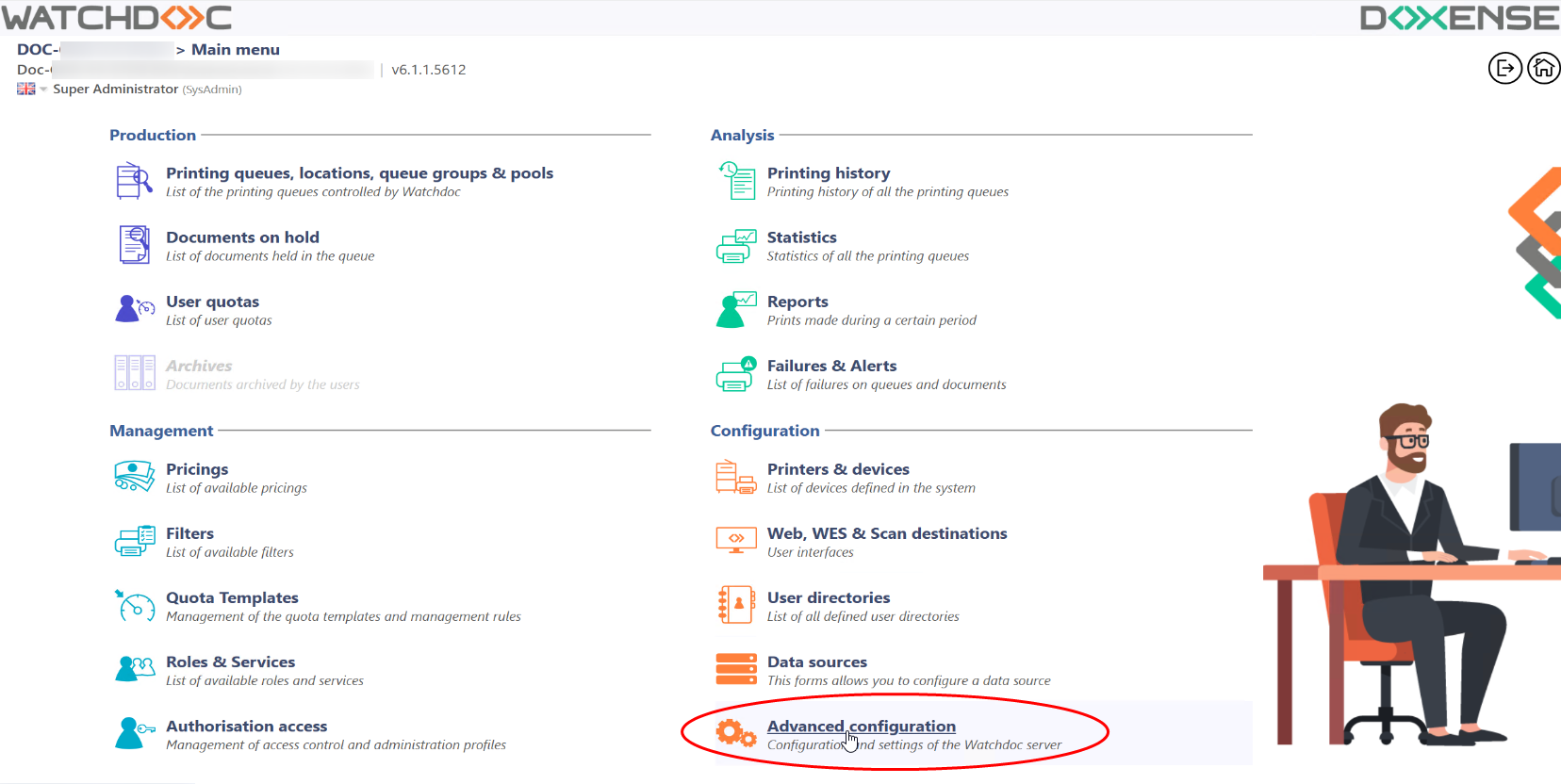
from the Main Menu > Configuration section, click Advanced Configuration;
-
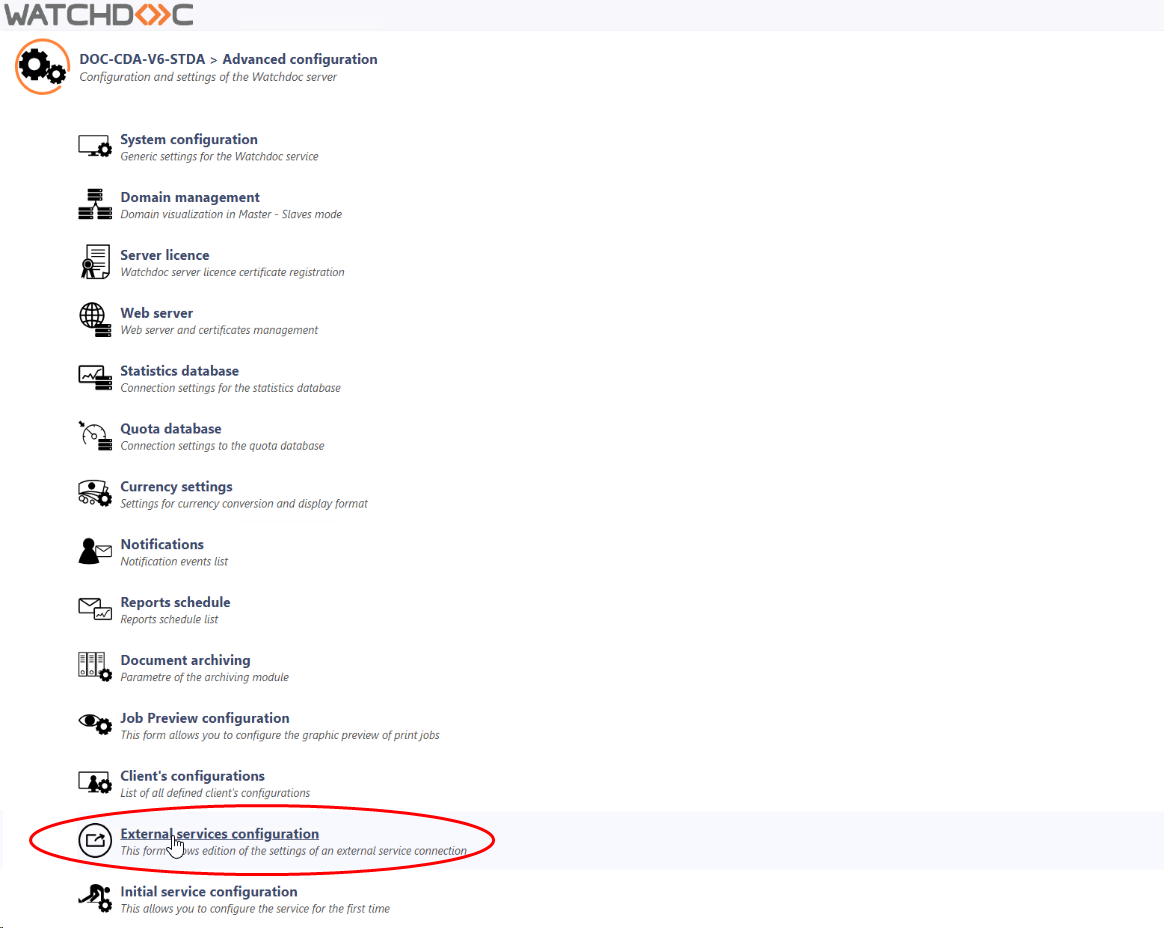
In the Advanced Configuration interface, click External Services;
-
in the External Services configuration interface, in the Open Bee section, check the Enable Open Bee connection box;
-
enter the Open Bee server address;
-
click Save
 , then configure the scan destination.
-
Log in to the Watchdoc administration interface as an administrator;
-
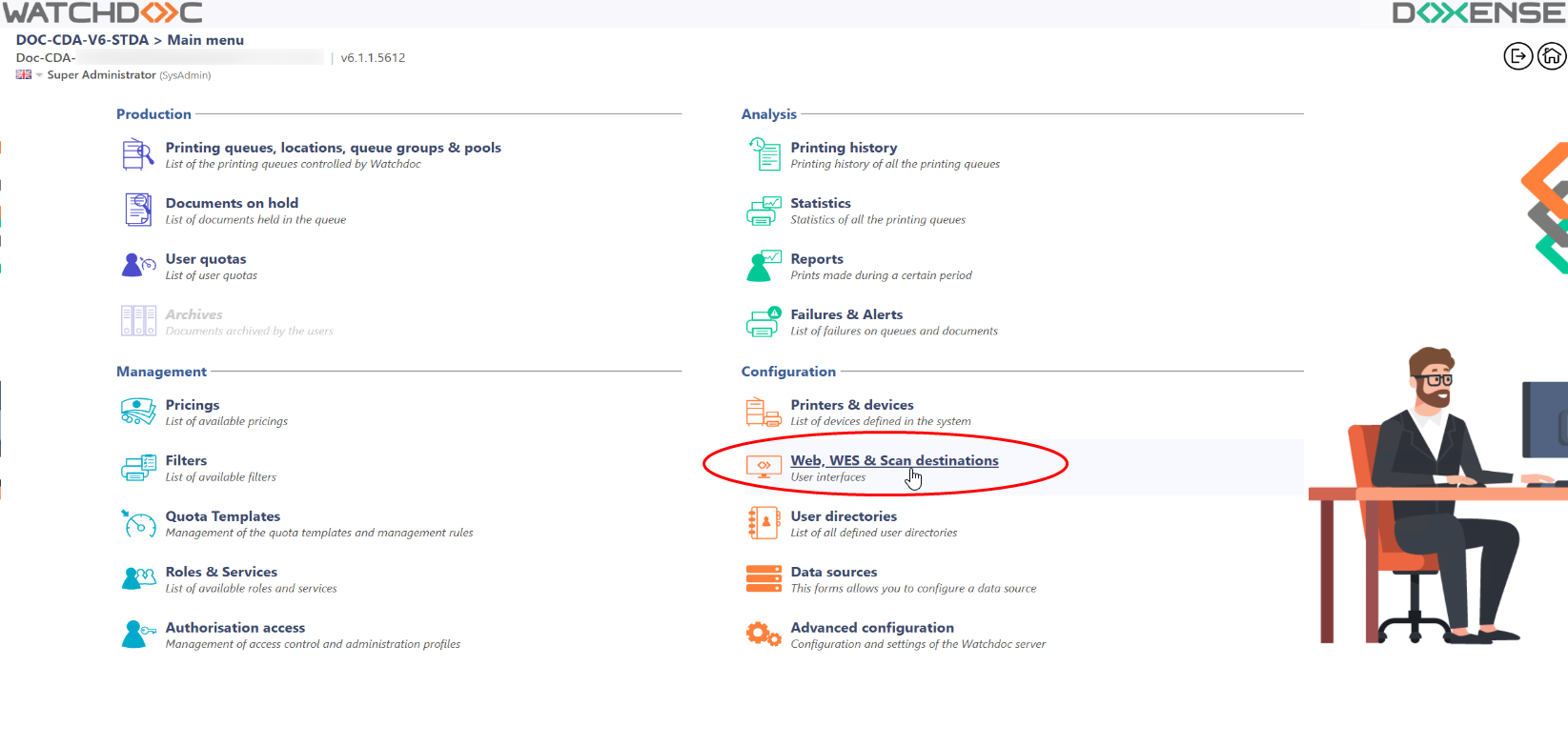
from the Main Menu > Configuration section, click on Web, WES & Scan Destination:
-
In the web interface, in the Scan destinations section, click on Create a new destination:
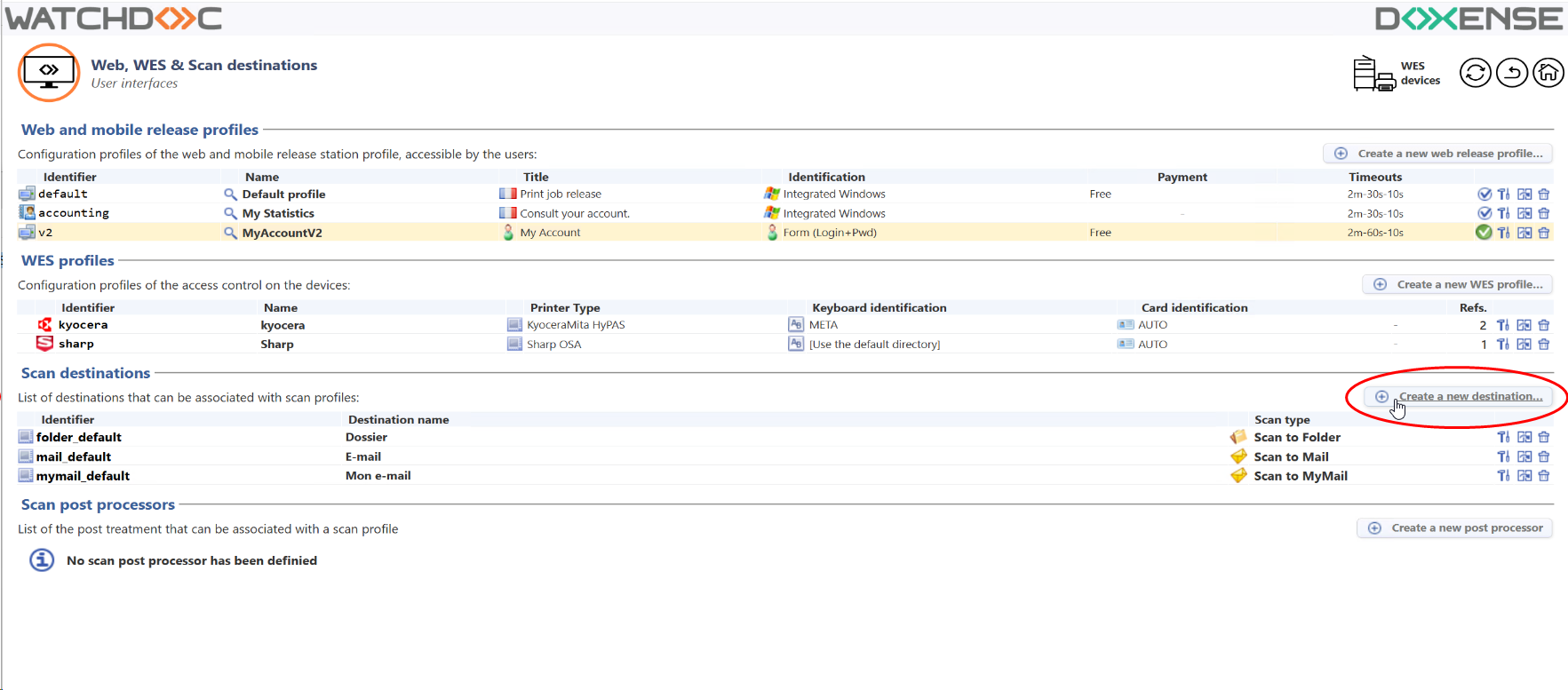
è You access the Scan Destination Creation interface.
-
In the Create a New Scan Destination interface, under the Settings section, select the OneDrive destination type;
-
then fill in the following settings:
-
Settings section
-
Identifier: Enter the web profile ID. It can consist of letters, numbers, and the ‘_’ character, up to a maximum of 64 characters. This ID is displayed only in the administration interfaces. Once saved, this ID cannot be deleted.
-
Label: Enter the destination name in this field;
-
Global: Check this box if the server belongs to a domain and the destination, configured on the Master server, needs to be replicated on the slave servers.

-
-
Open Bee section: If you haven't set up your Open Bee connection yet, click the button to set it up (see above);
-
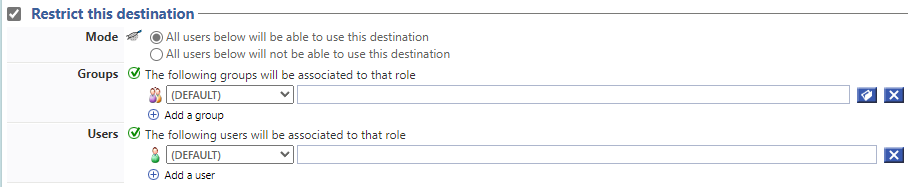
Restrict this destination: section. Tick this box so that the destination can only be used by certain users or groups of users:
Mode: select whether this destination can be used by all users (default) or tick All users below will not be able to use this destination to restrict. The precise:
one or several Groups in the list: these users groups will not be authorised to use this destination.
one or several Users in the list: these users will not be authorised to use this destination.
-
Click on the Register
 button to create the destination.