Activate Supervision Console
Procedure
To activate the Monitoring Console in Watchdoc :
-
Access Watchdoc as an administrator;
-
from the Main Menu, Configuration section, click on Advanced Configuration;
-
In Watchdoc administration interface, go in the section Advanced configuration, click on System configuration:
 :
:
-
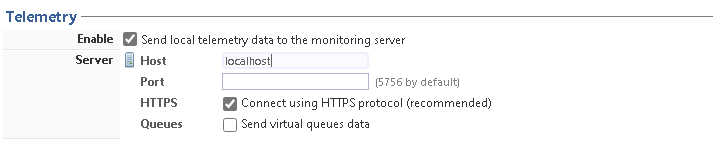
in the System configuration interface, go to the Telemetry section;
-
Enabled: tick the box to enable the function for sending data to WSC;
-
Server: configure the telemetry server that hosts the WSC supervision console by completing the following parameters;
-
Host: specify the FQDNS (or IPfix address of the server hosting WSC)
-
Port: indicate the port through which to access the host server (if it is
-
different from the default port);
-
HTTPS: tick the box if access to the server is secured by the protocol
- Queues: tick the box to enable Watchdoc to send information about virtual queues:
-
-
click on the button
 to confirm activation of the Telemetry option;
 -
restart the Watchdoc service for activation to take effect;
è once the Telemetry option has been activated in Watchdoc, you can configure the Watchdoc Supervision Console (WSC)
Check
-
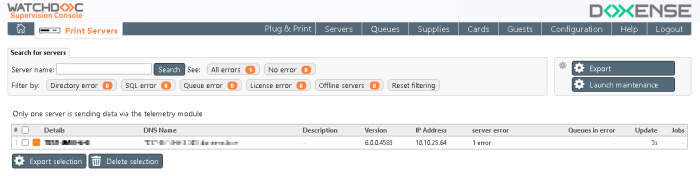
To check that everything is working correctly, log on as administrator to the Supervision Console;
-
from the Main Menu, click Print Servers;
-
the server on which telemetry has been enabled appears in the list of print servers servers managed by WSC :
è Next step : Driver registration