SNMP Walker - Collect the SNMP DATA
Principle
In Watchdoc, the SNMP data collected on the print-device are displayed in print-queue administration interface.
Procedure
To access SNMP data :
-
from the Main Menu, Production section, click Printing queues, locations, queue groups & pools ;
-
In the list of queues, click on the queue you wish to analyse;
-
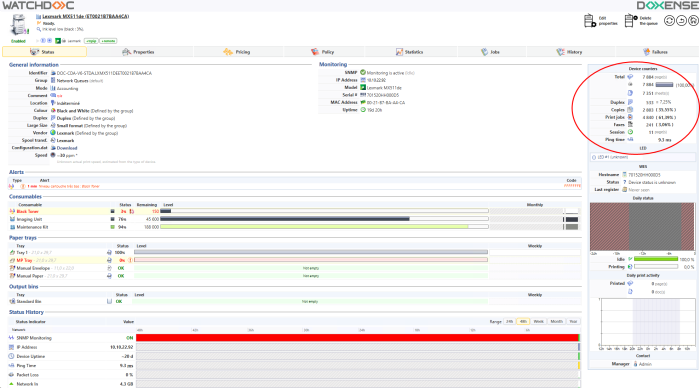
in the queue management interface, under the Status tab, information about the queue is displayed, including counter data (top right-hand insert); synchronisation of PUK codes in WPC (in Silent mode), taking account of code changes made in Watchdoc :
Questions to ask before analysing SNMP data
To analyse the SNMP information displayed, check the following parameters:
-
To check that SNMP control is enabled and set to the correct IP address, go to the Watchdoc administration interface;
-
from the Main Menu, Production section, click Printing Queues, Queue Groups, Locations & Pools ;
-
In the list of queues, click on the queue you wish to analyse;
-
from the queue management interface, click on the Edit properties button:
-
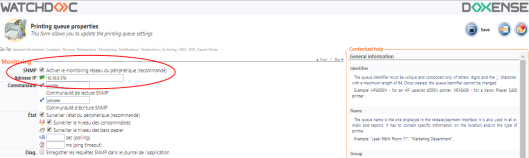
in the Monitoring section, tick the box corresponding to the SNMP parameter: enable monitoring... ;
-
in the IP Address field, check that the IP address entered is valid:
Ask yourself about any changes made to the Watchdoc configuration that may have affected the data (addition of a module, update, firmware update, etc.);
Where possible, try to reproduce the anomaly on identical device models.
If the information checked is correct and no changes have been made, make an SNMP capture to analyse the problem. Send the SNMP capture, providing the following information:
-
Name of the fault,
-
Make and model of the device,
-
Firmware version,
-
Name of the SNMP capture (in .bin and .txt formats), and a screenshot (or photo) of the device's counters (in .jpg format).