Impression depuis Google Chrome® - Options d'impression non-respectées
October 2026
Contexte
As an administrator, I have noticed that when a user initiates a print job from the Google Chrome® browser, the print preferences set in MS Windows® or in the WES are sometimes not honored.
For example, the print queue is configured for black-and-white printing, but the user can still print in color. The same applies to duplex printing.
The following checks have been performed:
-
the default print preferences are correctly configured in the MS Windows® printer driver;
-
the print preferences are configured on the print queue controlled by Watchdoc;
-
when the document is printed from another MS Windows® application, the preferences are correctly applied;
-
when the document is printed from Google Chrome®, certain driver preferences may not be honored;
Cause
This behavior is related to the print preview mechanism used by Chrome®.
It is important to distinguish between the roles of Watchdoc, MS Windows®, and Google Chrome®. Watchdoc does not automatically set the document’s default print settings.
When printing is performed without a specific print client (such as WPC for Windows or for Chrome, for example), the printer’s default settings are handled by the MS Windows spooler.
In this case, Google Chrome may use its own print preview and preparation mechanism. The settings selected in this environment may override the preferences configured at the MS Windows printer driver level.
Thus, even if the print queue or driver is configured to use black and white by default, Chrome may send the print job with its own settings. The issue is therefore not necessarily related to Watchdoc: it is a conflict of priority between Chrome’s print settings and those defined in Windows.
Resolution
Two methods are available:
-
The first allows for local configuration on a specific workstation;
-
the second is recommended in a corporate environment when the configuration needs to be deployed centrally across a large number of workstations.
-
Disabling the Chrome® print preview on a specific computer
This method involves modifying the shortcut used to launch Google Chrome® in order to disable its print preview.
MS Windows® computer
-
Close Google Chrome® completely.
-
Open the MS Windows® Task Manager and check that no Google Chrome® processes are still running. If necessary, use ‘End Task’ on the Chrome® processes.
-
On the Desktop or in the taskbar, right-click the Google Chrome® shortcut icon.
-
Open the shortcut properties.
-
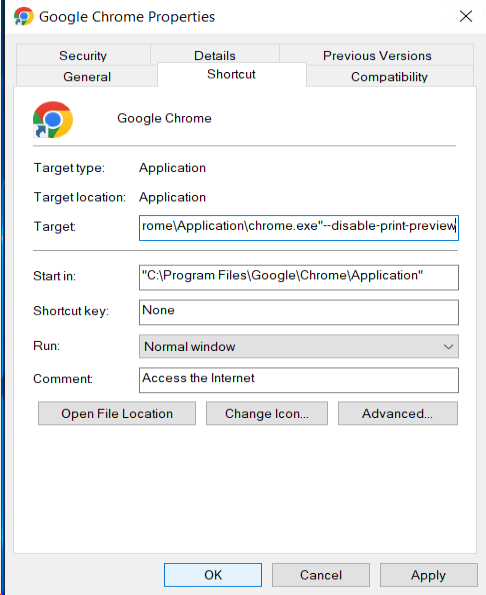
In the “Target” field, place the cursor at the end of the existing command.
-
Add a space, then the following parameter: --disable-print-preview:
-
Confirm by clicking “OK”.
-
Restart Google Chrome®, then carry out a test print.
Mac® Computer
-
Close Google Chrome®.
-
Open Terminal on your Mac®.
-
Run the following command using the default settings: `write com.google.Chrome DisablePrintPreview -bool true`.
-
Close Terminal and open Google Chrome®.
-
Perform a test print.
Disable Chrome® print preview in bulk via Group Policy
In an enterprise environment, use this method when the setting needs to be applied to multiple workstations. The configuration is carried out using Google Chrome® Group Policy Object (GPO) templates.
-
Download the Group Policy template for Chrome®.
-
Extract the contents onto the domain controller.
-
Open the ‘Configuration’ folder.
-
Open the ‘admx’ folder.
-
Copy the ‘Chrome.admx’ file and the appropriate language folder (EN-US) to the folder where you store your policy settings (by default: c:\Windows\PolicyDefinitions)
-
Open Group Policy Management.
-
Select the policy you wish to use to apply the Chrome configuration, or create a new one.
-
Go to: Computer Configuration > Policies > Administrative Templates > Google Chrome Printing.
-
Double-click ‘Disable print preview’.
-
Set the policy to ‘Enabled’.
-
Click OK.
Checks
-
After modifying the shortcut or Group Policy, carry out the following checks.
-
Check that Chrome is completely closed, then restart it.
-
Check the default settings for the print queue and the MS Windows printer driver.
-
Open a document in Chrome and print it (CTRL+P).
-
Check that the print job is sent with the expected settings, in particular Black and White if this option is set by default.
-
If necessary, compare the result with a print job initiated from another Windows application.