Watchdoc - Usage - Use the web page and My Account page
Presentation
The ‘My Account’ page is Watchdoc's web interface dedicated to user access. As it offers the same features as a WES (Watchdoc interface embedded in the printer screen), it may not be offered by the administrator. Furthermore, depending on how the administrator has configured it, it may offer a variety of uses. It may therefore allow you to:
-
unblock pending jobs (if print jobs need to be validated);
-
view your print history;
-
view statistics on your prints and your team's prints;
-
view details of your print quotas;
-
view archived print requests;
-
view your identification data such as your identification codes and badges.
Unblock/print pending jobs
If the printers are configured in validation mode, you must go to an interface to validate your print jobs before retrieving them. This can be done
-
from the WES (Watchdoc interface embedded in the printer screen);
-
from the ‘My Account’ page:
In this interface:
-
choose how you want to view the pending jobs (preview, thumbnails or list);
-
if there are several documents pending, select the ones you want to print;
-
click on the Print document button.
View your codes and badges
To view the list of your registered identification code(s) and/or badges:
-
from the document unlocking interface, click on My Account;
-
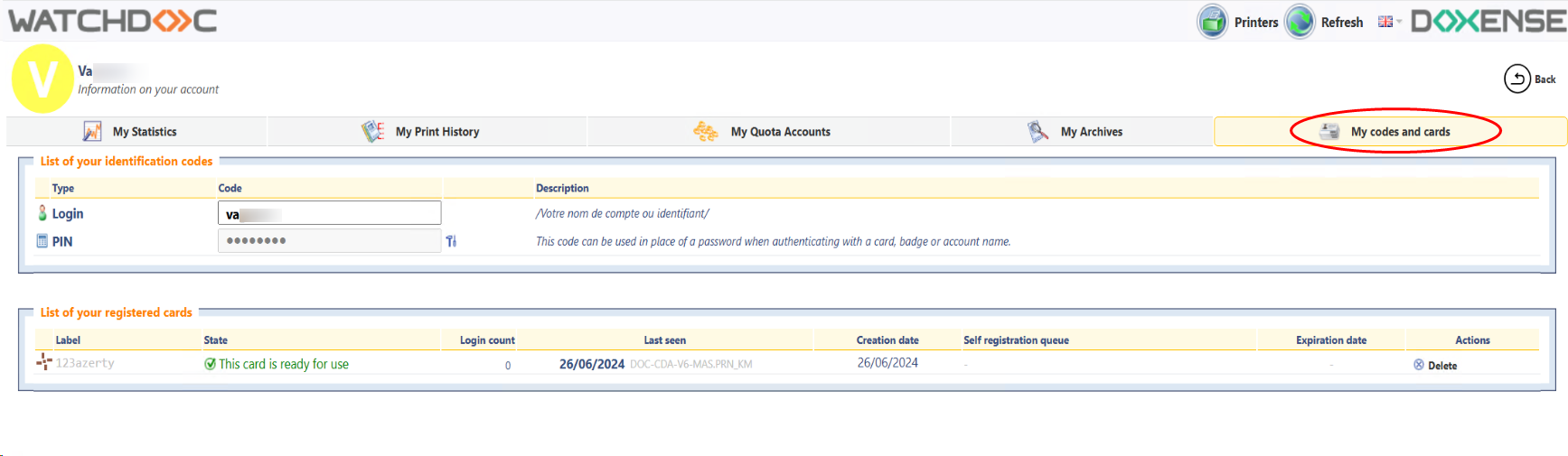
click on the My Codes and Cards tab;
-
The list Your identification codes contains more or less codes (PIN, PUK, print code) depending on the configuration applied. If the code is hidden, click on the View
 button to display the code;
-
The list List of your registered cards contains the card(s) that you can use to identify yourself on a WES:
-
Enter your PIN Code
You can log in to WES using a PIN code or a print code in addition to your login details. To enter your PIN Code :
-
click on the Edit
 button;
 -
enter your PIN code in the field;
-
click on the Save
 button: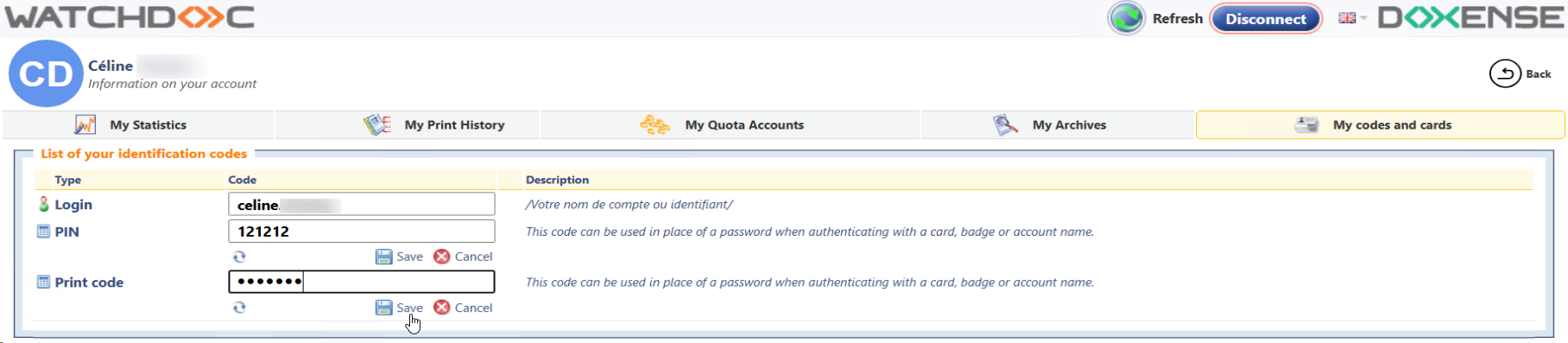
Enter your Print Code
You can log in to WES using a print code in addition to your login details.This is an alphanumeric code that must contain between 4 and 16 characters and must not contain more than 2 digits.
To enter your Print Code :
-
click on the Edit
button; -
enter your print code in the field;
-
click on the Save
button:
View your statistics
To view your recent print history:
-
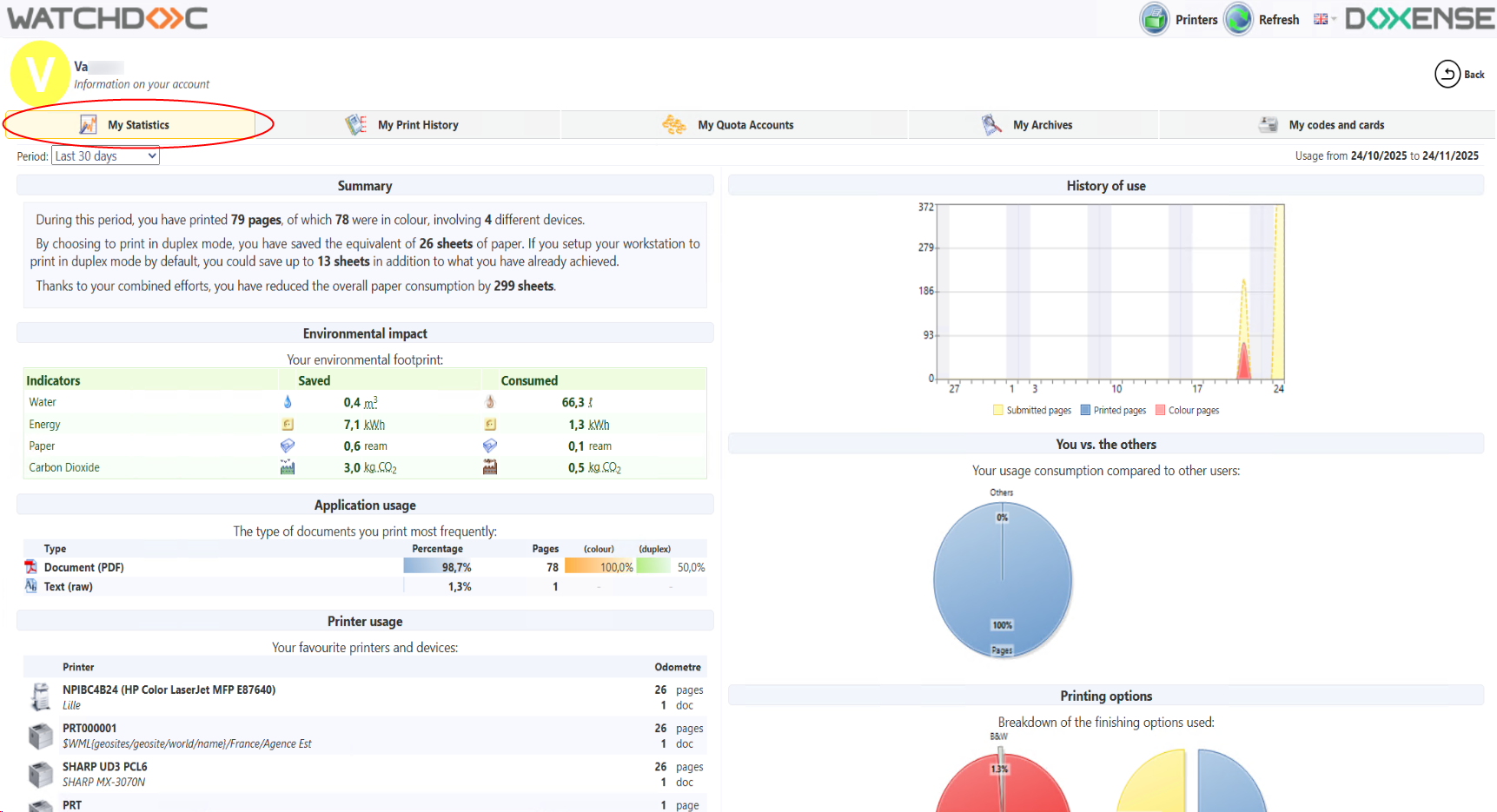
from the document unlock interface, click on My Statistics;
-
click on the My Statistics tab: you will be taken to an interface that displays your Watchdoc usage data and the resulting environmental impact:
Archiving a document
From the queue interface, you can use the archive function. This function allows you to keep print jobs on the ‘My Account’ page in case you want to reprint them later but are unable to keep them on your workstation.
To archive a document:
-
from the list of pending jobs, tick the box corresponding to the document(s) to be archived;
-
click on the Archive document button, then confirm the archiving request:
èYou can now view the archived document(s) under the My Archives tab. From this interface, you can print the document(s), delete them, or make their archiving permanent.
View print jobs history - History of recent documents
To view your recent print history:
-
from the document release interface, click on My Account;
-
click on the My Print History tab;
-
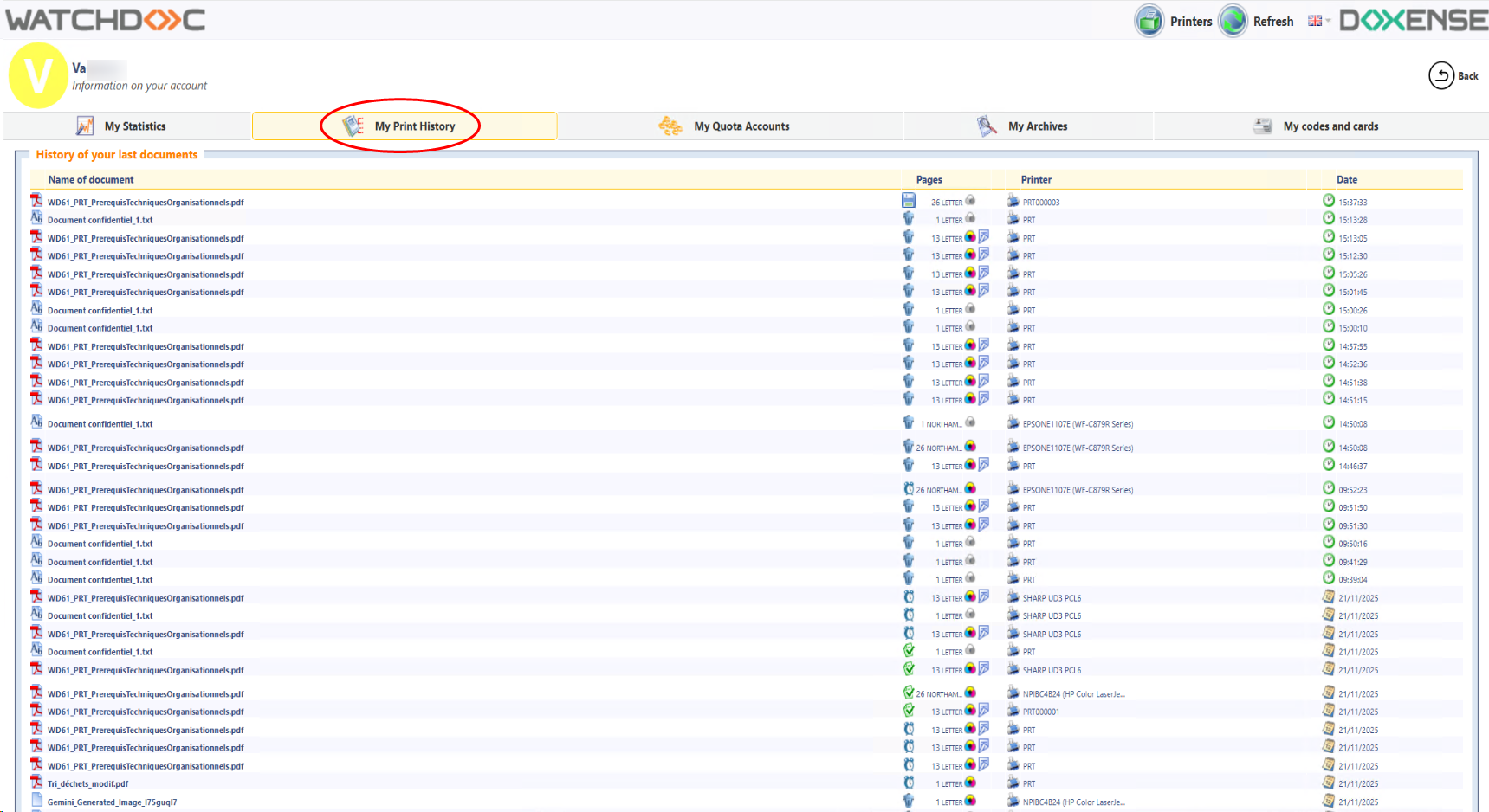
the Recent Documents History list shows the documents you have requested to be printed. The number of documents varies depending on the configuration defined by the administrator.
-
The list includes various indicators:
-
an icon indicating the document type/format (.pdf, .txt, .doc, .xls, .jpg, etc.)
-
the Document Name. This name may be a generic title (‘my document’) if the administrator has enabled the ‘replace document title’ function in the print queue settings;
-
to the right of the document are pictograms indicating the processing that has been applied to it:
-
indicates a document that has been printed;
-
indicates a document that has been deleted (either by you or automatically due to a specific printing policy);
-
indicates an expired document, i.e. one that has been deleted after remaining in the queue for too long without being explicitly printed or deleted;
-
-
The Pages column contains printing criteria:
-
the number of pages,
-
the document format (A4, A3, letter, etc.),
-
the colour mode (colour or black and white),
-
and the single-sided or double-sided mode,
-
a redirection icon
 when the job has been redirected because the selected printer is unavailable
-
-
The Printer column contains the name of the printer responsible for processing the document.
-
The Date column shows the time the print job was processed for the current day or the date it was processed for previous days:
-
Viewing your quotas
To view the status of your quotas and quota-related transactions:
-
from the document release interface, click on My Account;
-
click on the My Quotas tab;
-
in the list of activated quotas, you can view
-
the quota status
-
the user balance
-
the cost of the last transaction

-
Viewing your archives
If the archiving function is enabled and you have used it, you can view the list of archived documents.
To view the list of archived documents,
-
from the document release interface, click on My Account;
-
click on the My Archives tab:
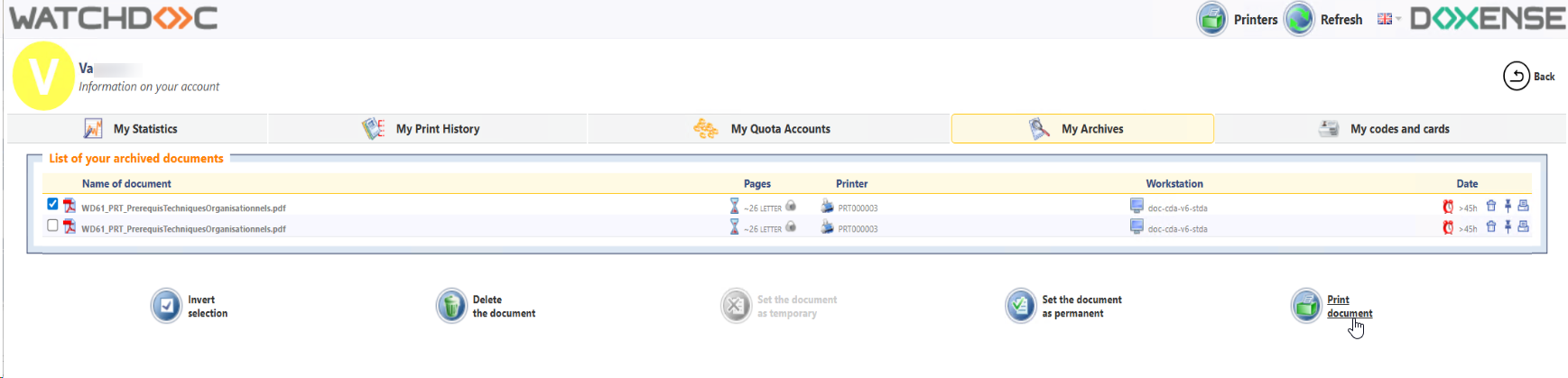
You can tick the boxes next to the documents in this list to apply various actions to them:
-
delete the archived document;
-
make the archived document temporary;
-
make the archived document permanent;
-
print the archived document.
Credit your Paybox account
-
Using a link provided to you by your administrator, log in to the Watchdoc Reload via Paybox interface on the My Account page.
-
From this interface, select the account to be reloaded (if you have more than one) and choose the amount to be reloaded from the drop-down list.
-
Enter your e-mail address in the field provided.
-
Click Next to validate the information entered.
-
Paybox sends the transaction to Watchdoc via the administration website. This transaction is recorded in a log file for diagnosis if necessary. The user's PMV is then credited by the Watchdoc service with the amount indicated.