Principle
During installation, you can specify whether WPC for Windows should run in normal mode or silent mode.
This mode allows WPC for Windows to run without user intervention. The user can start print jobs without having to select a printer. They then confirm their print jobs on the device configured by the Watchdoc administrator.
The WPC for Windows graphical interface is then hidden as it is not required. However, the user can activate it to access the Profile and Jobs tabs, from where they can view their personal data (codes and badges, for example), their environmental impact and the list of jobs processed by Watchdoc.
Configuration / installation
To enable WPC for Windows to run in silent mode, you need to configure this mode:
-
when configuring Watchdoc Print Client for Windows, in the User Interface section, under the Silent Mode setting (see Configuring WPC for Windows);
-
when installing WPC for Windows on the client workstation (or client workstations via GPO deployment), in the Parameters interface, the Operates in Silent Mode checkbox must be ticked (see Installing WPC for Windows on the user workstation).
Usage
When WPC for Windows is installed in silent mode, to print:
-
the user initiates the print job from their application;
-
they confirm the print job on the device designated by the Watchdoc reference and collect their printout.
To access their profile:
-
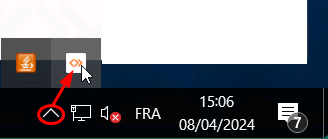
on their workstation, from the hidden icons, the user clicks on the WPC for Windows icon:
-
In the Watchdoc Print Client interface, he logs in:
-
He can then access the Profile and Jobs tabs:
-
Users can also view their print jobs under the Jobs tab.