Connect - Analysis tools for preparing incident reports in Doxense Support
Principle
You may encounter anomalies or malfunctions when installing, configuring or using Doxense software.
 is the portal that Doxense uses to manage all relations with its network of customers and partners. The Connect portal allows you to:
-
submit licence requests;
-
report incidents relating to the management of your products in the form of tickets to Doxense® Support. The incident report form allows you to structure your requests and add additional information (logs, configuration files, screenshots, etc.);
-
track the processing of your tickets and receive notifications when their status changes;
-
be associated with ticket requests from members of your organisation and track their processing.
Rigorous use of this form enables Doxense® to provide you with the best possible online support, in line with our contractual commitments, while ensuring the traceability of request processing. It also helps us to design documentation tailored to your expectations and needs.
The Doxense Support team needs information to contextualise, reproduce and analyse the issue you are reporting. Please provide as much information as possible about the malfunction by answering the following questions:
-
What? Please provide a procedure to reproduce the problem.
-
When? Please specify the date and time when the problem occurred, whether it was a one-off occurrence or whether it has happened again.
-
Where? Please specify the brand and model of the printing device, the administration interface or the user interface on which the problem occurred.
-
Who? Please provide the account information for the user affected by the issue (LDAP directory, SQL, Entra ID, Guest database (WSC), etc.).
-
Watchdoc logs: Please attach the log file obtained using the WatchdocDiag Tool (see Use Watchdoc DiagTool).
-
Logs WPC for Windows: Please attach the specific log file (see Troubleshooting WPC for Windows).
-
WES log files: For an incident relating to a WES, please activate the traces for each queue affected by the incident (see Activating WES traces).
-
Logs Skyprint: Please attach the specific log file (see Troubleshooting Skyprint).
This will enable the Doxense Support team to respond to your request more quickly and efficiently.
Thank you for your cooperation!
Categorise the incident
Doxense software anomalies can be classified into three categories:
-
Integration anomaly
An anomaly that occurs during installation or use of the software.
The following information is required to analyse an integration anomaly:
-
A detailed description: the more detailed the description, the faster the anomaly can be identified.
-
Watchdoc log files: you should provide the logs from the day the anomaly was detected, specifying the time at which the problem occurred. By default, these files are located in the C:\Program Files\Doxense\Watchdoc\logs directory;
-
Server event logs: please provide the Application and System event logs, exported in .evt format, which will speed up the analysis of the anomaly.
-
The Watchdoc configuration file (config.xml) located in the ‘Data’ folder by default.
-
Analysis anomaly
An anomaly that appears in the software history (for example, N pages printed were not counted).
The following information is required to analyse an analysis anomaly:
-
either a detailed description of the environment:
-
server system type
-
client workstation system type
-
information about the printer driver: PCL, PS, version, specific settings
-
version of the Watchdoc software.
-
-
or a set of documented spools if it is not possible to access the environment to collect the analysis elements directly
- the server is equipped with Windows Server 2003 SP1, the workstation is running Mac OS 10.4, we are using the generic PS driver for Mac OS and the Photoshop 9.X application.
- Here are four spools from a MAC print job under X.4 from Photoshop 9.X. The first spool is a colour print image. The second spool is a print of the same image but forced to black and white. The same applies to the other two spools with a different image.
Example: Watchdoc indicates that printouts are in colour even when black and white printing is forced from the driver:
-
-
SNMPanomaly
Anomaly relating to information reported to the Doxense software by printing devices (counter information, consumables, serial numbers, etc.).
The following items are required to analyse an SNMP anomaly:
-
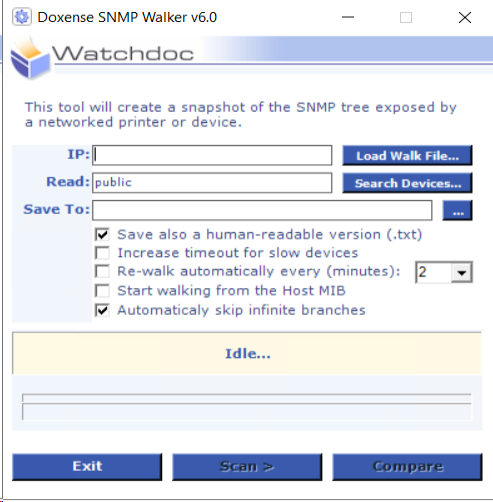
Files generated by SNMP Walker (C:\Program Files\Doxense\Watchdoc\Tools\SNMPwalker by default):
-
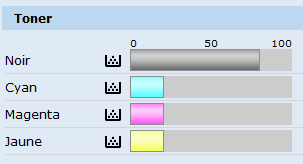
Screenshot of the printing device containing the incorrect information (e.g. inaccurate consumable levels) or the error message:
Incident management organisational chart
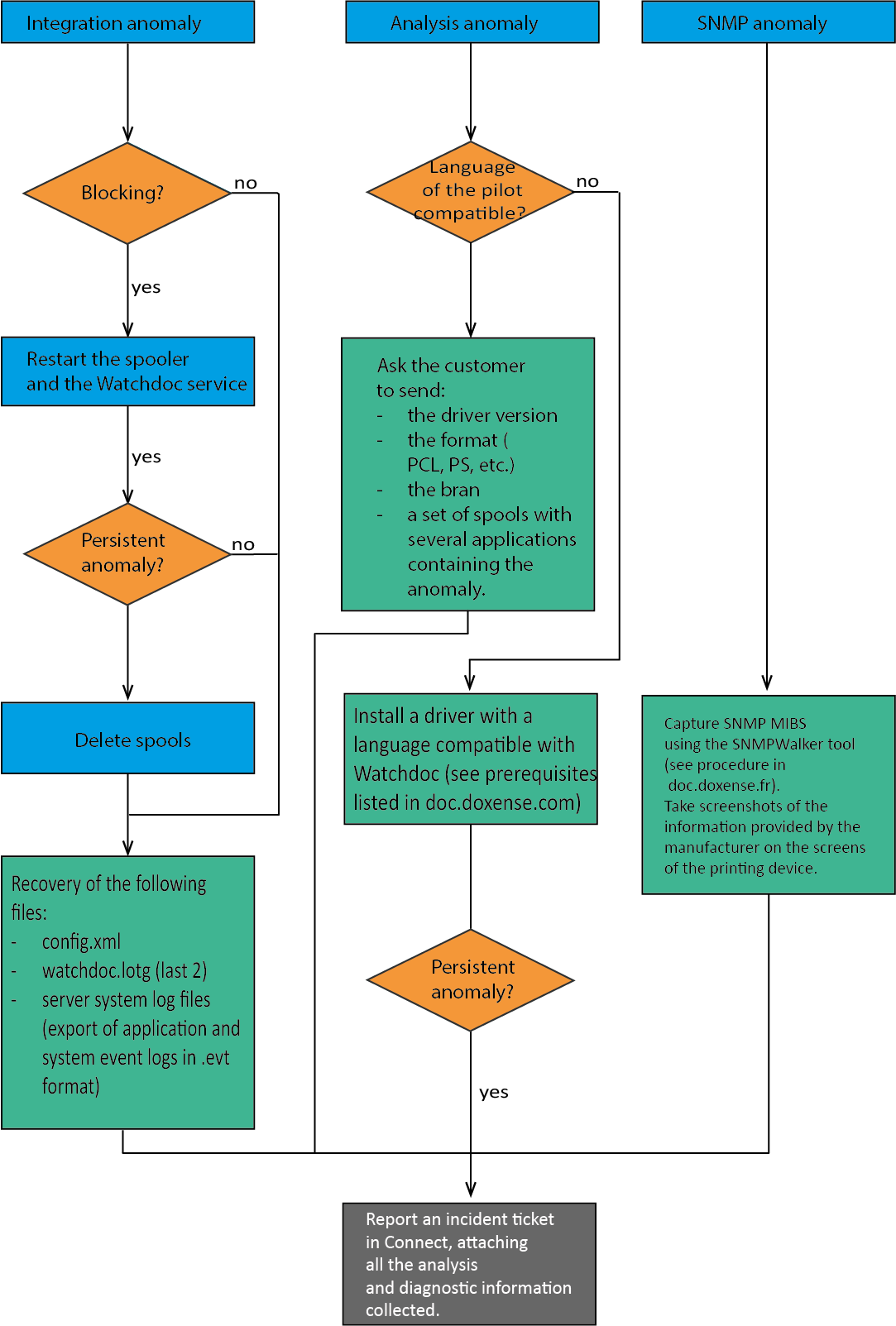
Comments on the diagram:
-
Blocking: means that users can no longer print or unblock their print jobs.
-
Capturing a set of spools: the term ‘spool’ refers to a print file sent from an application to a printing device. The spool usually has the extension .spl (or .shd).
To capture spools, the printing device controlled by Watchdoc must be paused.
To enable analysis, attach the documents for which you have noticed anomalies to your ticket, along with the corresponding spools in the spooler queue (by default C:\Windows\system32\spool\PRINTERS).
-
Capturing SNMP MIBS: the term MIB refers to a structured set of information issued by a network entity (in our case, a printing device).
The SNMP Walker software, available in the Watchdoc package (C:\Program Files\Doxense\Watchdoc\Tools\SNMPWalker\SNMPWalker.exe by default), allows you to retrieve these MIBS.
To use it, refer to the documentation available on the doc.doxense.fr website (see SNMP Walker - Capturing walks).
Several captures (4 to 5 every ten minutes) are necessary to analyse the information fields.
-
Delete spools: a corrupted document can overload the Watchdoc spooler CPU. Spools should be deleted to free up CPU resources:
-
Stop the Watchdoc service, the LPD service and the print spooler.
-
Delete the contents of the following directories:
-
C:\Program Files\Doxense\Watchdoc\Data\JobStore.jsdb\Jobs
- C:\Program Files\Doxense\Watchdoc\Data\Spools\JobStore
- D:\Spool\printers
-
-
restart
-
lthe spooler
-
the LPD service
-
Watchdoc
-
-
N.B.: these actions delete all documents sent for printing. Users must restart their print jobs.