Principle
You can configure notifications to inform WPC users of various actions initiated from WCP for Windows, such as print jobs sent, queued, or printed via the application.
These notifications are sent to users in different formats depending on the operating system installed on their workstation. The links in the notification are clickable.
Procedure
Configure Watchdoc Print Client notifications
To configure WPC notifications:
-
From the Main Menu, Configuration section, click Advanced Configuration;
-
In the Advanced Configuration interface, click Notifications;
-
In the Notifications interface, click Notification Settings;
-
Configure the notification (see Configure notification) by also checking the WPC Notifications box: Enable notification to users in WPC:

-
Confirm the notification settings.
Configure Watchdoc Print Client events
To configure WPC events:
-
From the Main Menu, Configuration section, click on Advanced Configuration.
-
In the Advanced Configuration interface, click on Notifications.
-
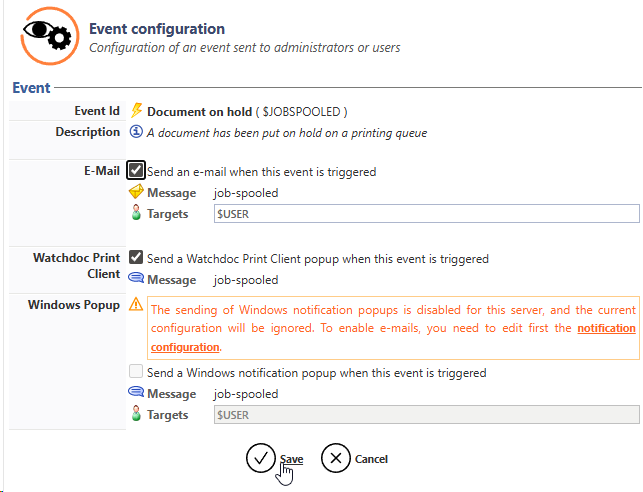
In the Notification Configuration, Events list, click on the button to edit the event for which you want to trigger a notification.
-
in the Notification Event interface, tick the Email box: send an email when this event is triggered and check that the target indicated is $USER;
-
then tick the Watchdoc Print Client box: send a message via WPC notification when this event is triggered;
-
confirm the event configuration;
- In the list of events, check that ON is displayed in the Watchdoc Print Client column corresponding to the configured event.
The term “Not supported” means that the notification is not intended for WPC :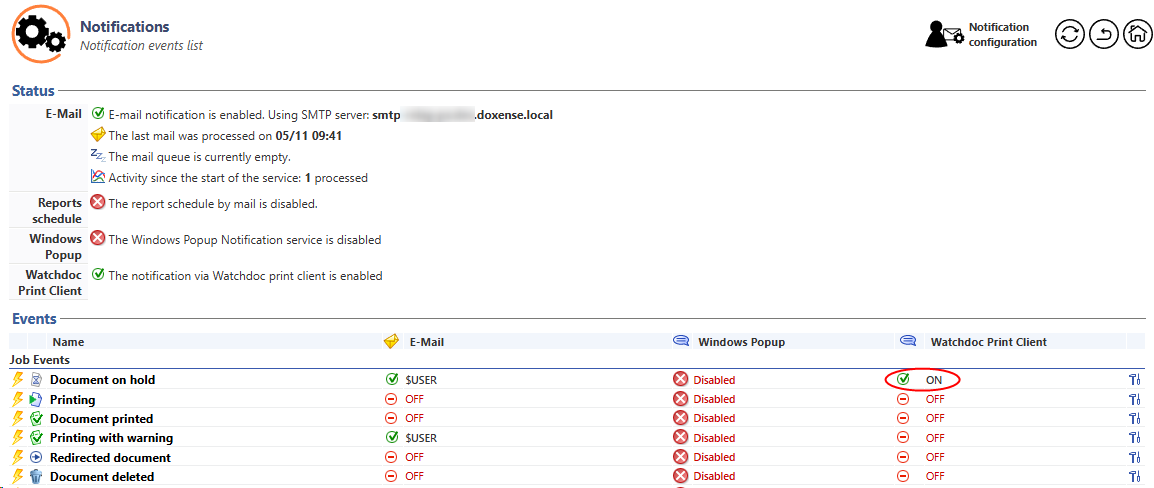
- Test the notification by triggering the event for which you configured it (for example, start printing) and verify that the message appears in the Watchdoc Print Client interface
Note: Notifications are only sent to the user's workstation for print requests that were initially sent to a physical queue. Therefore, a job sent to a universal queue and then redirected to a physical queue will not trigger a notification.
Note : If notifications are displayed in a language other than the desired language, configure Watchdoc's regional options to specify the desired language (Main menu > Configuration section > Advanced configuration > System configuration > General configuration section > Regional settings > Language setting):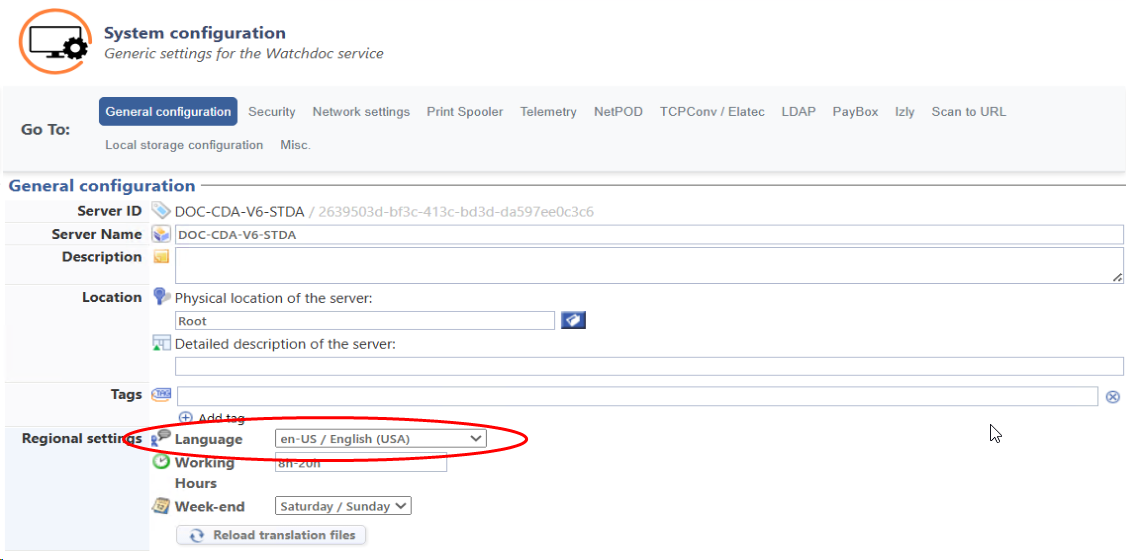
Synchronisation of notifications on slave servers.
If Watchdoc is installed in a domain, the notification settings configured on the master server must be replicated on the slave servers.
Using the ‘Global’ checkbox in the Notification configuration > Replication section: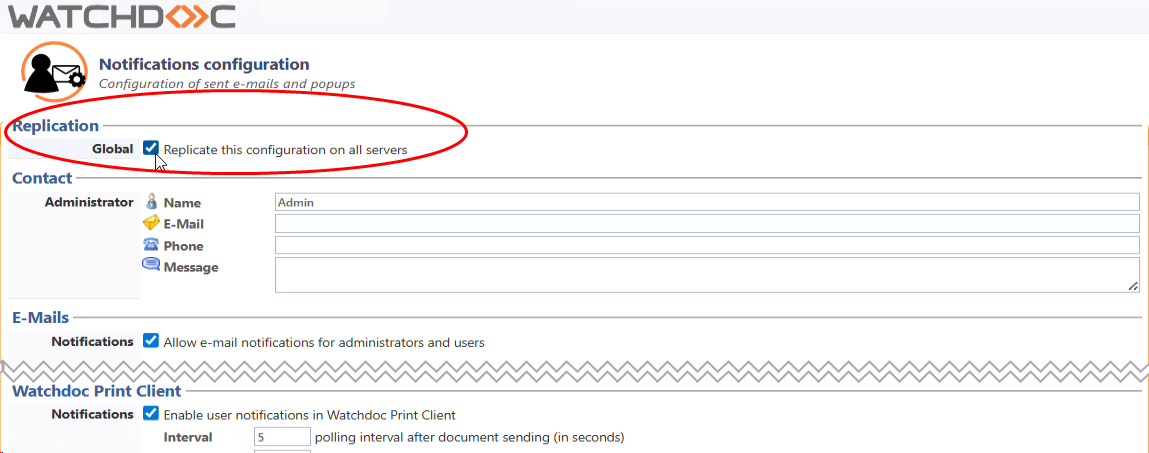
Customisation of notifications in MS Windows 10 or 11.
WPC notifications depend on MS Windows® notifications, which you can manage by referring to the MS Windows documentation.
In addition, messages corresponding to events can be modified in the Watchdoc language wml file (C:\Program Files\Doxense\Watchdoc\Data\lang_service.fr-FR.wml, in tags beginning with # [notifications/wpcs/), by following the Customize WLE keys and labels procedure.