WES Brother - Troubleshoot the WES
General troubleshooting rules
-
What? What procedure can be used to reproduce the incident?
-
When? What date and time did the incident occur?
-
Where? On which printer did the incident occur?
-
Who? On which user account did the incident occur?
-
Watchdoc.log: thank you for providing the Watchdoc.log file;a
-
config.xml file: thank you for providing the Watchdoc.log file;
-
server/device communication logs: please activate the trace files on each file.
Once this information has been gathered, you can send a resolution request from the Connect portal, the incident management tool dedicated to partners.
To obtain the best possible record of the data required for diagnosis, use the Watchdoc DiagTool® supplied with the Watchdoc installation program (cf. Creating a log report with DiagTool).
Scan, fax and photocopying are not in Watchdoc
If the scan, fax and photocopy jobs are not counted by Watchdoc, verify that the address (host name or IP) of the Watchdoc server configured in the device is correct:
-
Iin the configuration interface of the queue, in the WES section, click on the button Application status (displayed when the WES is properly installed);
-
Click the Download button to download the log files and WES configuration;
-
In the downloaded .zip file, open the Config.json file using a text editor and check the information corresponding to the address of the server (Address) and ports;
-
If the configuration of the address and / or ports is not correct, click on the Configure button on the queue configuration interface.
-
Verify that the procedure has resolved the problem.
Activating WES Traces
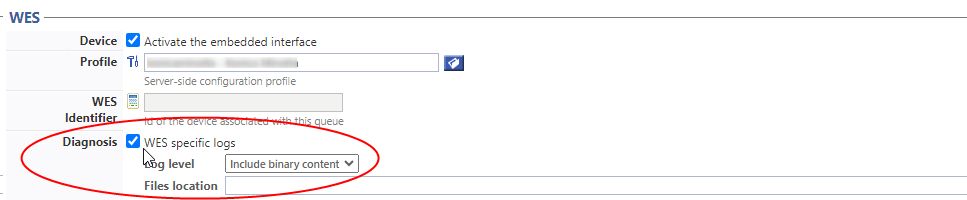
To diagnose a problem with WES applications, you need to activate the log files specific to WES communications :
-
in the Watchdoc web administration interface, from the Main Menu, Production section, click Printing queues, queues groups & pools;
-
In the list of queues, click on the name of the queue with the WES for which you want to activate the trace files;
-
in the queue management interface, click on Properties;
-
in the WES section, click on the Edit the settings button:
-
in the WES>Diagnostics section, tick the Enable traces box;
-
in the Trace level list, select:
-
Auto: retains standard traces;
-
Include binary content: retains detailed traces.
-
-
In the Path field, enter the path of the folder in which the trace files should be saved. If you leave the field blank, the trace files will be saved by default in the Watchdoc_install_dir/Logs/Wes_Traces/QueueId installation folder:
Spool Transformation not taken into account – Oct. 2026
Context
As an administrator, I am configuring print job transformation (spool transformation) on the WES profile for Canon print devices. I have noticed that these transformations are not being applied.
Cause
This issue may be due to the driver configuration. The basic Canon driver incorporates the proprietary CPCA language, which is incompatible with job transformation. To enable this functionality, the driver must be configured to use the PCL6 standard.
Resolution
The device driver settings must be changed to ensure that it is PCL6-compatible rather than CPCA-compatible (see Prerequisites and prior configuration).
Quota duplication issue when printing in a large format (A3)
Context
When a dual quota system is enabled to account for different print formats (one quota for A4 and another for A3), an accounting error may occur, whereby large-format prints are counted twice against the quota.
For example, suppose we have:
-
a quota with a unit cost of €1 for an A4 print;
-
a quota with a unit cost of €2 for an A3 print.
When printing in A3, instead of being debited €2, the quota is debited €4.
Cause
The error is due to the device’s accounting system, which counts one large-format print as two small-format prints. The cost is therefore doubled, even though the quota configured for a large-format print is already higher than the quota for a small-format print.
Resolution
-
Go to the print queue where the billing error was detected;
-
from the queue view interface, click the ‘Edit queue properties’ button;
-
in the ‘Print Queue Properties’ interface, go to the ‘Expert Mode’ section;
-
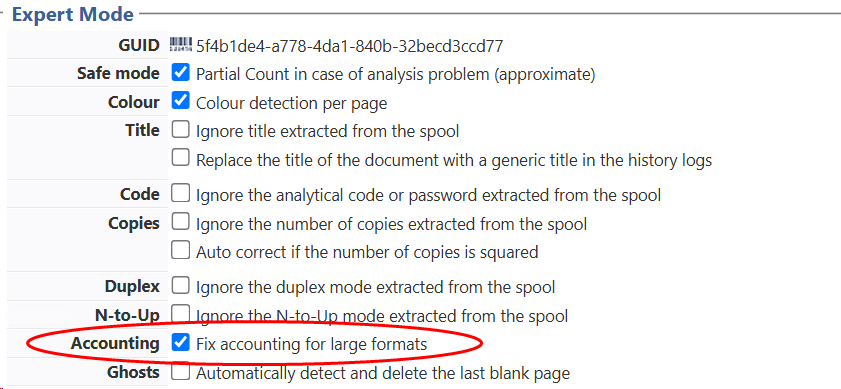
for the ‘Accounting’ setting, tick the ‘Adjust accounting for large formats’ box:
-
Start a large-format print job to check that the quota is no longer being counted twice.
N.B.: Once the issue has been resolved, if you find that the problem persists with colour printouts only, please update Watchdoc to version v.6.1.1.5696 or later, which includes a fix (for an even number of pages only).
WES can no longer find the output queue – Error message: “Unable to locate the output queue” - sept. 2026
Context
A print queue using the cross-server printing function is migrated from one server to another. After initiating a print job to this queue, the user attempting to unblock it is presented with the following error message: “Unable to locate the output queue” (see Troubleshooting WES). In the WES logs, the administrator finds the following message: “! WARN [...] WES|RestApi21Controller “Could not find target ‘Queue [Queue ID]’ in the local config. Any local job will be visible, but will not be able to print on that remote device!”.
Cause
The cache retains the identifier of the queue that has been migrated to a new server. Therefore, if the queue is accessed too soon after its migration, its identifier – which is associated with the old server – is still present in the cache, which has not had time to be cleared.
Resolution
You should restart the Watchdoc service to clear the cache. Then try printing again to check whether this has resolved the problem.